 Get to know the interface, features and
shortcuts in Microsoft's latest operating system. (Now updated for the
Windows 10 April 2018 Update.)
Get to know the interface, features and
shortcuts in Microsoft's latest operating system. (Now updated for the
Windows 10 April 2018 Update.)
Windows 10 is the best operating system that's come along from Microsoft in a long time. It's a shape shifter that changes its interface depending upon whether you're using a traditional computer or a touch-based one.
It undoes the damage wrought by Windows 8, including eliminating the awkward Charms bar and bringing back the long-mourned Start menu.
A lot more has changed as well, with a new default browser called Edge, the integration of the Cortana digital assistant, links to Microsoft’s cloud-based OneDrive cloud storage service and plenty more.
Share this story: IT pros, we hope you’ll pass this guide on to your users to show them the Windows 10 ropes. Also see our printable PDF of Windows 10 gestures and shortcuts.
Whether you've upgraded to Windows 10 from Windows 8 or an earlier version of Windows, or if you've got it on a new PC, this cheat sheet will get you up to speed on it.


I'll cover everything you need to know, and I've also provided quick-reference charts listing useful keyboard shortcuts, touchscreen gestures and touchpad gestures.
Keep in mind that there have been four major updates to Windows 10 since its initial release in July 2015.
This story is based on the Windows 10 April 2018 Update, so the features that are described here and the screenshots you see may differ from what you see on-screen if you have an older version of Windows 10.
Note: If you want to get the most out of Windows 10, you'll have to use a Microsoft ID as your user account.
Without a Microsoft ID, you won't be able to use a number of Windows 10 apps or sync settings among multiple devices. So when you set up Windows 10 for the first time, sign in with an existing Microsoft ID or create a new one.
Before we get started, a few words about some terminology you'll need to know. Microsoft has sowed enormous confusion with a set of lightweight apps that were originally designed for the Windows 8 touch-oriented Start screen interface.
It first called them Metro apps, and then through the years changed their names to Modern apps, Windows Store apps, and then Universal Windows apps.
Now it's settled simply on Windows apps, although at times the company also calls them Universal Windows apps, to get across the point that they will run on all versions of Windows 10, including for mobile phones. In this article, we'll refer to them as Windows apps.
What about apps designed for the desktop? Microsoft now calls them Windows desktop applications. In this article we'll call them desktop applications, for simplicity's sake.
The new Start menu
The loudest complaint that desktop users had about Windows 8 was the death of the Start menu. In Windows 10 it's back with a vengeance.When you use Windows 10 on a desktop or laptop, you boot directly into the desktop. Click the Start button at the lower left of the desktop to bring up the Start menu command central for traditional PC users.
(Those who use Windows 10 on a tablet will instead see a Start screen; more on that later.)
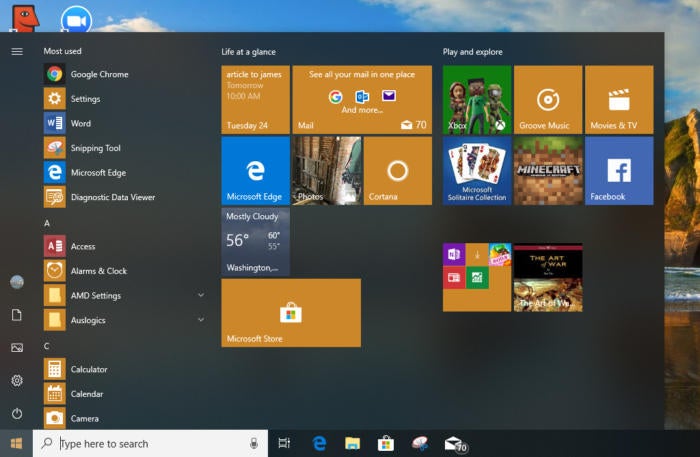 |
All Apps: Up at the top left of the screen is a “hamburger menu” (three parallel horizontal lines) that when clicked is a toggle for turning on or off a list of all Windows apps and desktop applications, in alphabetical order. (By default, the list is turned on.) Click any to run it.
At the very top of the All Apps list is a list of the apps and applications you use most frequently. Right-click any and you’ll see a list of the files you’ve recently opened in it. Click the file to open the application or app, with the file loaded into it.
In some instances you’ll see a folder with a down arrow next to it rather than an icon that means there are several options there, for example, to run the Dropbox app or visit the Dropbox website.
Click the folder to show all the options, then click the option you want to run. (Also note that in some instances, there will be a folder, but when you click it, you only get one option, to run the app or application.)
 |
Account: Down toward the
bottom left of the screen is a set of stacked icons, starting with an
icon for your user account. Click it to sign out of Windows, lock your
PC or change your account settings.
When you choose to change your
account settings, you'll be sent to a screen that lets you change your
account picture, your password, and a variety of other settings.
The right side of the Start menu has tiles for Windows apps and desktop applications. They're grouped into two Microsoft-created categories Life at a glance and Play and explore and then, if you have more apps than fit in those two, they're grouped into unnamed categories below that.
New tiles will be added to the unnamed groups as you install new apps and desktop applications. (Note that if you’re using an enterprise edition of Windows 10, your IT department may have configured other groupings, such as productivity applications or support tools, to appear on the right side of the Start menu.) Click any tile to run the app associated with it.
Some tiles are "live" that is, real-time information gets piped into them. So the Mail tile, for example, shows your latest email, the Weather shows the weather and so on. Only Windows apps have live tiles. Desktop applications, such as Microsoft Office, don't. Each group of tiles is three columns wide, with most tiles taking up one column by default.